
Platforms & devices
Android TV Stick or Box: Which Should You Choose?
Android TV stick or box? A stick suits a second TV with strong Wi-Fi; a box suits the main TV. How to choose by room, connection, power and storage.
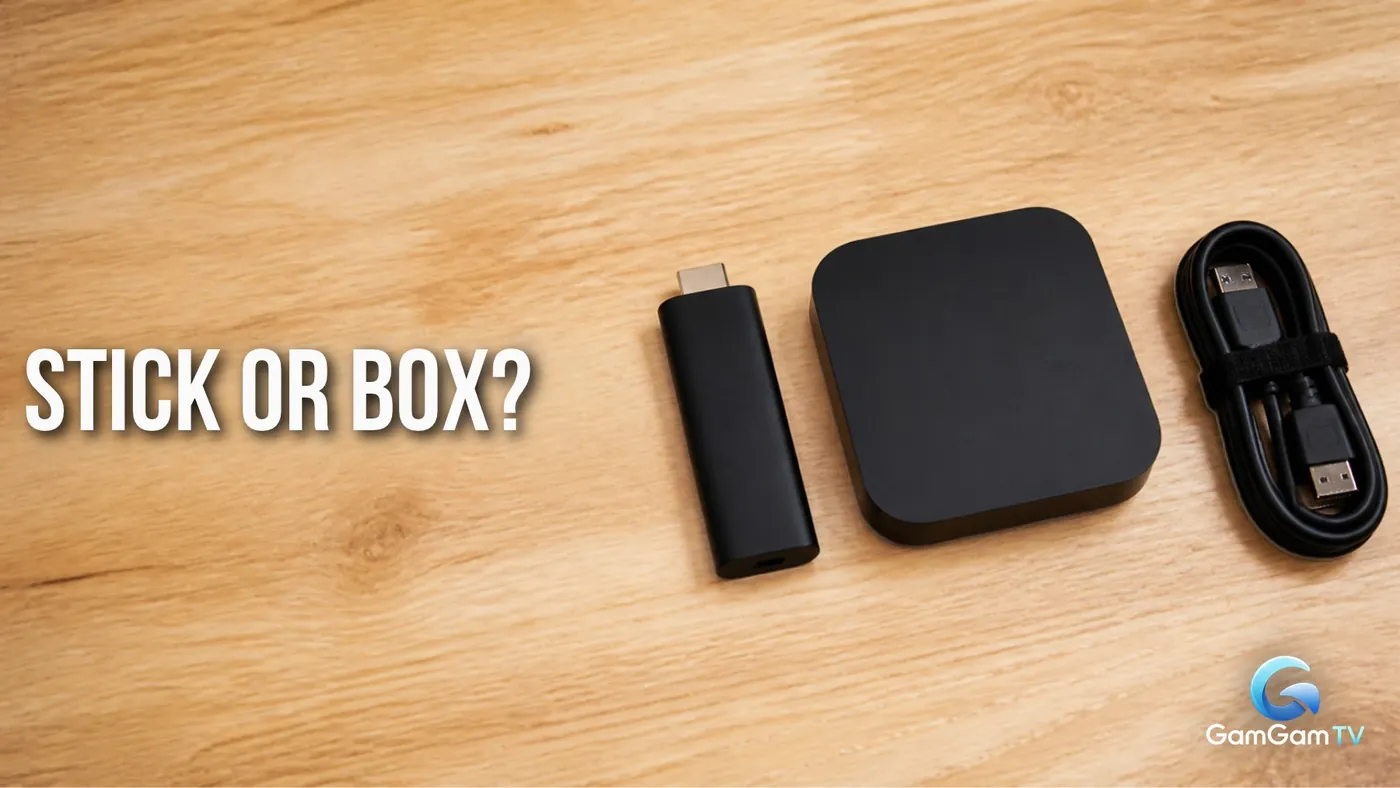
Choose an Android TV stick if the TV is in a bedroom or second room with strong Wi-Fi and you mainly stream. Choose a box if it's your main TV, you can run a network cable to it, or you watch a lot of live TV.
A certified stick and a certified box run the same Android TV or Google TV software and the same apps, so the decision isn't about what you can watch. It's about what fits inside each one: a stick has no room for a network port, much storage or cooling, and it has to work from wherever it hangs behind your TV.
Streaming stick vs box at a glance
| Stick | Box | |
|---|---|---|
| Connection | Wi-Fi; cable only with an adapter | Wi-Fi and a built-in network port |
| Power | Small wall adapter | Wall adapter |
| Storage and ports | Usually less; few or no spare ports | Usually more; often USB |
| Where it sits | Hidden behind the TV | On a shelf or TV unit |
| Best for | Bedroom, kitchen, travel | Main TV, nightly live TV |
Wi-Fi at the TV decides most of it
A stick lives behind the TV, which is about the worst place in the room for a Wi-Fi signal: the back of a TV puts a lot of metal and electronics between the stick and your router. In the forum threads we read, the most repeated stick complaint was buffering that the same household's box, on the same Wi-Fi, didn't have. Users who improved their Wi-Fi or moved the router closer often reported the stick was then fine.
So before you choose, test the spot. Stand where the TV is and play a video on your phone over Wi-Fi. If it starts quickly and plays smoothly, a stick will usually cope. If your phone struggles there, a stick will struggle more, and a box on a network cable is the safer buy.
Many sticks come with a short HDMI extender cable. Use it: it moves the stick a few centimetres away from the TV's back panel, which can help reception and gives it a little more air.
A network cable: built into boxes, an add-on for sticks
Most Android TV boxes have an Ethernet port, so if the router is near the TV, or there's a network socket in the wall, you just plug in a cable. Google's own range shows the difference neatly: its current Google TV Streamer is a small box with a gigabit Ethernet port built in, while its earlier stick-style Chromecast with Google TV needed a separate adapter that supplied power and a network connection through one plug.
Some sticks accept an adapter like that, but not all, and the maker's list of supported adapters is the only reliable guide. If you already know you'll want a cable, a box is simpler: one less thing to buy, and one less plug behind the TV.
Live TV is where this matters most. A film app can build up a buffer before it starts, but a live channel can only run a short way ahead of the broadcast, so a weak connection shows up sooner as pauses. If your evenings are mostly live channels, give the device the steadiest connection you can.
Power a stick from the wall, not the TV
Sticks come with a USB cable, and it's tempting to plug it into the TV's USB port so there's no adapter to hide. Don't. Google says its streaming devices may not get enough power from a TV's USB port and should use the adapter and cable that came in the box, plugged into a wall socket. A device short of power can show a low-power warning, restart or behave erratically.
There's a second reason. A stick powered by the TV switches off whenever the TV does, so it starts from cold every time you sit down, and forum users report that slow start-up as one of the more irritating things about sticks. A box always has its own power supply, so this doesn't come up.
Storage, memory and the apps you'll use
Small cases mean small specs. Sticks often have less storage than boxes, and app updates, saved data and pictures fill it faster than you'd expect. A player with a big channel list and a full TV guide keeps that information on the device too, so if you plan to use an IPTV player every day, check the storage before you buy.
Memory matters as much as size. Google's guidance for TV app developers treats a device with 1 GB of RAM, or 1.5 GB on a 4K device, as low-memory, and warns that memory pressure can make apps slow or close them and can drop video frames. Look for 2 GB or more, whether you buy a stick or a box. Our guide to the minimum specs for an Android TV box explains the other checks, and they apply to sticks too.
Is a stick slower than a box?
Not automatically. Newer sticks can be quicker than older boxes, and in the threads we read some people were perfectly happy running current sticks on second TVs. What a box usually gives you is headroom: more memory, more cooling and room for a stronger chip. People who switched found it most noticeable in how quickly apps opened and how smoothly live TV ran over long evenings, not in picture quality.
One shortcut to avoid: no-name boxes that look powerful on paper. Several forum regulars told bedroom-TV buyers to pick a certified stick from a known brand over an uncertified generic box, mainly because of poor support and updates. Our guide to what an Android TV box is shows how to check certification.
Which one for which room
- Bedroom, kitchen or spare room with good Wi-Fi: a certified Android TV stick, powered from the wall.
- Main living-room TV: a box, on a network cable if you can manage it.
- Weak Wi-Fi at the TV and no way to run a cable: improve the Wi-Fi first; if you can't, a box sitting in the open on a shelf usually gets a better signal than a stick hidden behind the TV.
- Holidays and travel: a stick, because it packs into a pocket.
- An older Full HD TV: either works; a 4K model isn't wasted, because newer models often handle more video formats.
One more check if you're looking at a Fire TV Stick: Fire TV devices run Amazon's own system and app store rather than Google's, so an app made for Android TV and Google Play isn't automatically available there. Our guide to whether an IPTV player will work on your smart TV covers that in more detail.
Your next step
Do the phone test where the TV is and decide whether you can run a cable. Strong Wi-Fi and a second TV point to a stick; a main TV, live TV most nights or a cable within reach point to a box. Then check your shortlist against the minimum specs, plug it into the wall, and you're done. To follow the Android TV player we're building, visit the GamGam TV player page.
Frequently asked questions
Can I connect an Android TV stick to Ethernet?
Some sticks support a network adapter that plugs into their power or USB socket, but not all do. Check the stick maker's list of supported adapters before buying one, or choose a box with a network port built in.
Can I power a streaming stick from my TV's USB port?
It's best not to. TV USB ports often can't supply enough power, and Google advises using the adapter that came in the box plugged into a wall socket.
Is a streaming stick good enough for a main TV?
It can be if the Wi-Fi at the TV is strong and you mostly stream films and series. If you watch live TV most evenings or the signal is patchy, a box on a network cable is usually the steadier choice.
Do sticks and boxes run the same apps?
Yes, if both are certified Android TV or Google TV devices: they use the same Google Play store. Fire TV sticks are different, because they run Amazon's own system and app store.