
Platforms & devices
What Is an Android TV Box? A Beginner's Guide
An Android TV box plugs into your TV's HDMI port and adds apps from Google Play. What it does, whether you need one, and the one check before you buy.
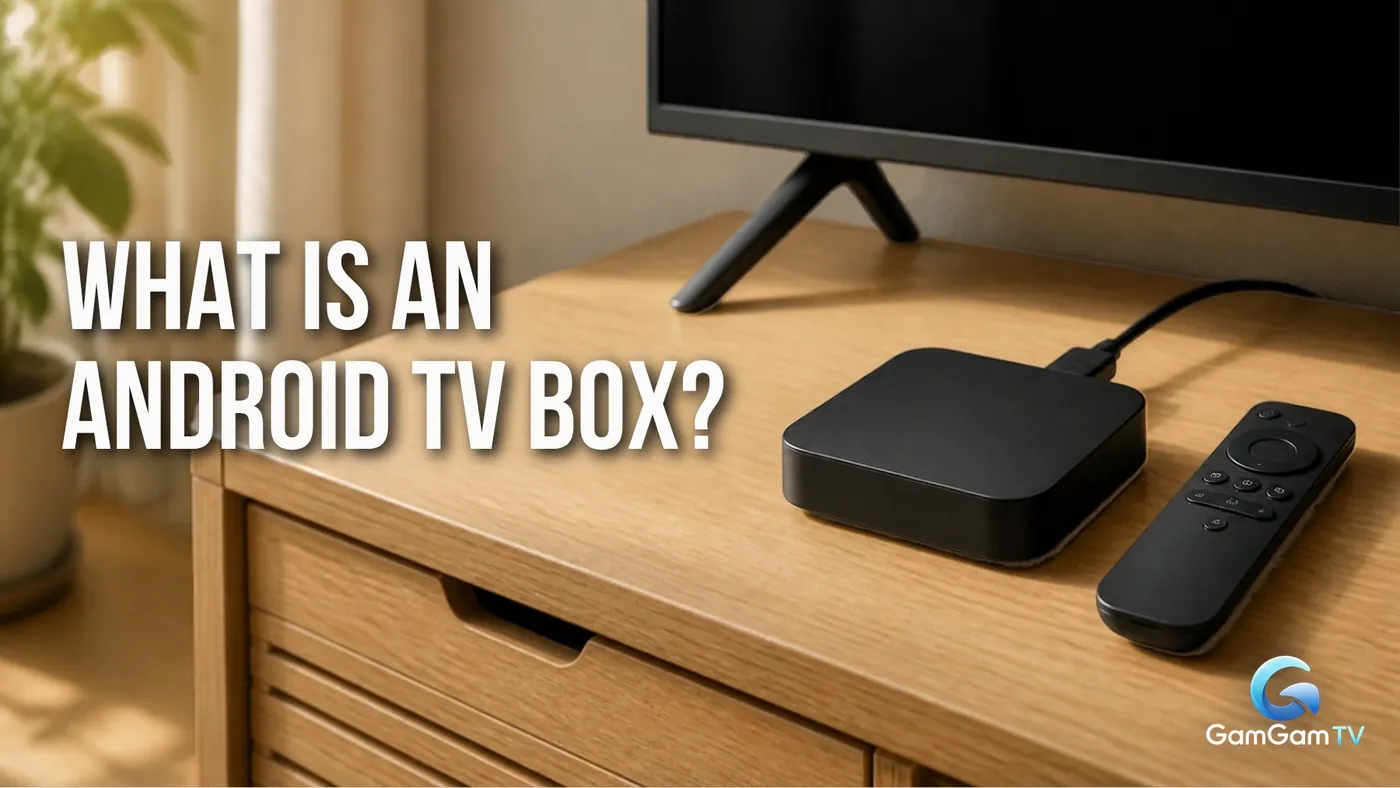
An Android TV box is a small device that plugs into your TV's HDMI port and gives it Google's TV software, so you can install apps from Google Play and control everything with a simple remote. It works with almost any TV that has a spare HDMI input, smart or not.
That's the short answer. The rest of this guide covers what a box actually does, whether you need one if your TV is already smart, what you need to set one up, and the one check that separates a good box from a frustrating one.
What an Android TV box actually does
Think of it as a small computer built for the living room. It connects to your home internet by Wi-Fi or a network cable, sends its picture and sound to the TV over HDMI, and runs Android TV OS, the version of Android that Google designed for television.
That last part matters more than it sounds. Android TV apps are made to be read from the sofa and driven with a directional pad and a select button, so you don't need a mouse or keyboard. Google also lists casting from other devices as part of Android TV, so you can send a video from your phone to the big screen.
Your TV becomes the screen and speakers; the box does the thinking. Change the box and you get new apps, a faster menu and fresh updates, without replacing the TV.
Android TV box, Google TV box or Android box?
You'll see all three names in shops, and they don't always mean the same thing.
A Google TV box runs Google TV, which is Google's newer home screen on top of Android TV OS. The apps are the same, so for most people the difference is the layout. Our guide on the difference between Android TV and Google TV explains how to tell which one you're looking at.
"Android box" is the one to be careful with. Some boxes sold under that name run the ordinary open-source Android made for phones rather than Android TV. They often need a mouse-style pointer, many TV apps aren't designed for them, and they may not be licensed to run Google's apps at all. More on that below.
Do you need an Android TV box if you have a smart TV?
Not always. If your TV's own apps open quickly and include everything you watch, a box adds little.
A box earns its place in three common situations:
- Your smart TV has become slow. TV software tends to get heavier over the years while the hardware stays the same, and people often report that a box felt much quicker than the TV's own menus.
- An app you want isn't available on your TV. Samsung, LG, Roku and some other TVs run their own systems with their own app stores, so Android TV apps won't install on them.
- Your TV isn't smart at all. As long as it has an HDMI input, a box gives it the same apps as a new smart TV.
Not sure what your TV runs? Our guide to whether an IPTV player will work on your smart TV shows how to find out in a couple of minutes.
Before you buy, our guide to whether you need a TV box for a smart TV walks through four checks, including the free fixes worth trying first and how to tell whether your TV is still getting updates.
What you need to set up an Android TV box
- A TV or monitor with a free HDMI input. You switch the TV to that input to see the box.
- A power socket nearby. Most boxes use their own power adapter.
- A Wi-Fi network or a network cable to your router. A cable is steadier if your router is close.
- A Google Account. Google lists one as a requirement for setting up its TV devices, and you need it to install apps from Google Play.
- Optionally, your phone. Setup can be quicker with a phone, but you can do it all with the remote.
Once it's plugged in, setup is guided on screen: pair the remote, join your network, sign in, and let the box install any updates before you start adding apps.
Certified or not: the one check before you buy
This is the check that matters most, and the one cheap listings rarely mention. Google certifies devices that meet its requirements, a status it calls Play Protect certified. Certified boxes get genuine Google apps, including Google Play.
Google says devices that aren't certified aren't licensed to run Google's apps, may not be secure, may not receive system or app updates, and may have apps and features that don't work properly. Forum regulars on tech sites say much the same thing from experience: no-name boxes with unusual brand names are the ones people most often regret, because of poor support, no updates and security worries. People also often report that popular streaming apps play in lower quality, or not at all, on boxes without the right Google licensing.
How to check:
- Before buying, look for the brand on Google's list of Android TV partners on the official Android TV website. A big name on the box isn't enough; the brand should be there.
- Check the product page says Android TV or Google TV, not just Android followed by a version number.
- After setting it up, open Google Play's settings and look under About for Play Protect certification. Google documents this route for its Play Store app; the menu layout on TV boxes can differ a little. If it says the device isn't certified, return it while you still can.
What else to look for in an Android TV box
Once a box is certified, these are the details that make the most difference day to day:
- Enough memory. People who've used a few boxes often say 2 GB of RAM is the least you'll be comfortable with, and more helps if you keep several apps open.
- An Ethernet port if your router is near the TV. A cable usually gives a steadier picture than Wi-Fi.
- Picture formats your TV supports. A 4K box only matters if you have a 4K TV; HDR only if your TV handles it.
- A sensible remote. Look for a direct Home button and a microphone button if you like voice search.
- A record of updates. A brand that has kept older boxes updated is more likely to keep doing so.
For the minimum RAM, storage, picture and network specs, with the reasons behind each, see our guide to the minimum specs for an Android TV box.
Boxes range from simple models to powerful ones built for 4K and gaming. To see what the top end looks like, our NVIDIA Shield TV Pro review covers one of the most capable boxes in detail.
Where an IPTV player fits in
An Android TV box is one of the most common places to run an IPTV player. The box provides the screen, the remote and the internet connection; the player is an app you install on it, which then plays your own playlist.
The box doesn't come with channels, and neither does a player. If you're still getting to grips with that split, our explanation of what an IPTV player does is a good next read.
Your next step
If you've decided a box makes sense, choose a certified one that suits your TV, then pick the app you'll use on it. Our checks for choosing an IPTV player walk you through testing a player with your own remote before you commit. To follow the Android TV player we're building, visit the GamGam TV player page.
Frequently asked questions
Do I need a smart TV to use an Android TV box?
No. Any TV or monitor with a free HDMI input will work. The box supplies the apps, so the TV only needs to show the picture and play the sound.
Is there a monthly fee for an Android TV box?
No. You buy the box once. Some of the apps and services you use on it may charge their own subscriptions, but the box itself doesn't.
How can I tell if an Android TV box is certified?
Check that the brand appears on Google's Android TV partner list before you buy. After setup, look for Play Protect certification under About in Google Play's settings.
Is an Android TV box better than a TV stick?
Not necessarily. Both run the same kind of software. Boxes often have more ports, such as Ethernet and USB, while sticks are smaller and plug straight into the HDMI port.